Dragonhold Camera Settings
Tune field of view, lock-on, and sensitivity for readable dragon and ground fights.
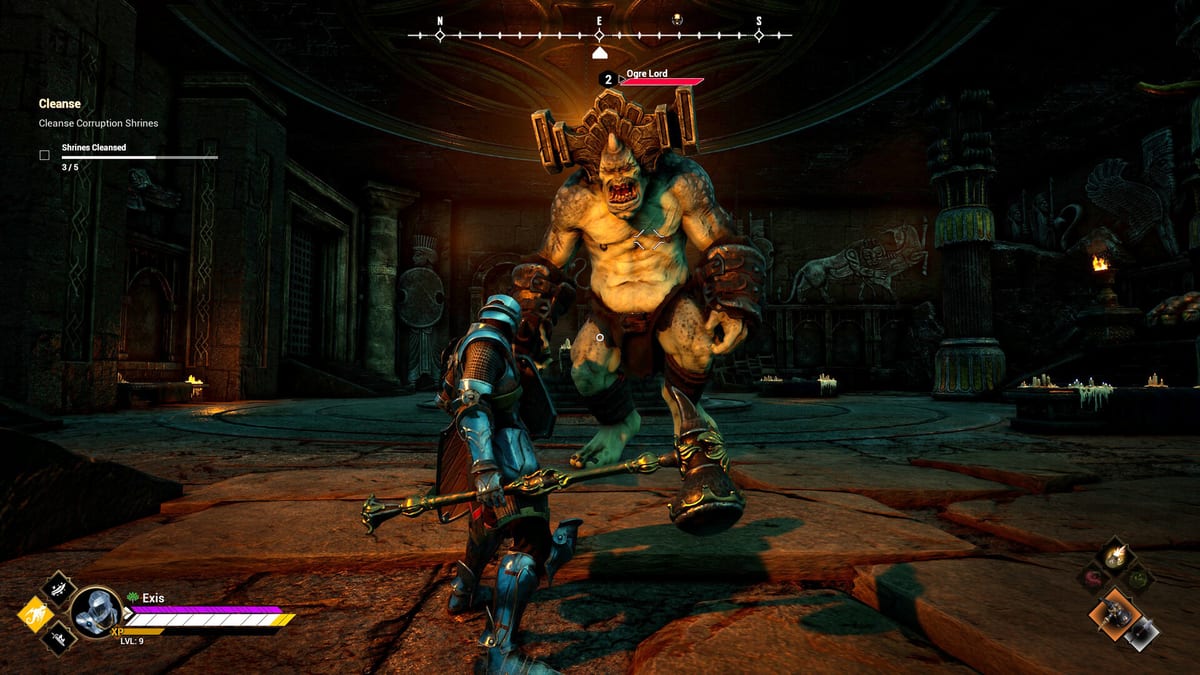
Dragonhold alternates between wide aerial vistas and tight third-person ground combat. If your camera fights you, both modes suffer — missed dodges, lost lock-on on boss weak points, and motion sickness during long solo sessions. This guide explains which settings to adjust on Steam PC, how they interact with Flight Controls and Ground Combat, and reasonable starting values for Early Access builds from Exis Games.
Where to find camera options
Open Settings → Video / Controls / Gameplay depending on patch layout. Early Access may split options across tabs:
- Field of View (FOV) — usually under Video or Gameplay.
- Mouse sensitivity — separate entries for ground and mounted camera are ideal; if unified, compromise near middle.
- Invert axes — personal preference; keep consistent between flight and foot.
- Lock-on behavior — toggle auto-lock, switch targets, camera follow strength.
- Motion blur / camera shake — Video tab; disable for clarity.
- Head bob — minimal on foot reduces nausea in interiors.
Revisit after Updates — option locations shift between builds.
Recommended FOV ranges
FOV trades immersion for awareness:
| Playstyle | Suggested FOV | Why |
|---|---|---|
| Dragon-heavy | 90–100 | See archers and terrain while banking |
| Ground-heavy | 85–95 | Balance telegraph readability and model size |
| Co-op support | 95–105 | Track multiple allies and adds |
Start at 96 ground / 100 mounted if separate sliders exist. Lower FOV if dragon wings clip the screen center during breath alignment.
Large bosses from How to Beat Bosses often require higher FOV to see foot telegraphs around their model.
Mouse sensitivity and DPI
Aim for 180–360° horizontal turn across 30–40 cm mousepad at combat sensitivity.
- Too high — overshoot lock-on switches during add waves.
- Too low — cannot track fast dragon strafes or rear attacks.
Set ground sensitivity slightly lower than flight if only one slider exists — precision dodges matter more on foot. eSports-style low sens works if you have large desk space; otherwise moderate sens with arm resets.
Lock-on settings
Lock-on simplifies single-target fights but hurts swarm clarity:
- Enable for elite and boss encounters with clear weak points.
- Disable or tap-toggle in dense camps where you must snap between archers and melee.
- Switch target binding — place on easy key (mouse wheel or thumb button).
- Camera follow strength — reduce if lock-on causes motion sickness circling large enemies.
Practice toggling in hub before Anchor-critical missions (Getting Started checklist).
Flight-specific camera tips
Aerial readability issues:
- Camera collision — if settings allow, reduce aggressive wall clipping that snaps view during ridge strafes.
- Auto-level — some builds auto-level horizon; disable if you prefer manual pitch control for dives.
- Speed FOV — optional effect widening FOV while boosting; disable if it disorients extract escapes (How to Extract).
Pair with stamina discipline from flight guide — disorientation causes wasted boost.
Ground-specific camera tips
Interior fights in Azarkeen need stable framing:
- Reduce shake — hit reactions obscure parry windows.
- Increase contrast — Video settings helping see ground AOEs (not camera, but synergistic).
- Shoulder swap — if available, swap shoulder in tight corridors for clearer chest looting angles.
Ground mistakes from bad camera feel like input lag — tune before blaming netcode in co-op (Co-op Guide).
Motion sickness and comfort
Long extraction sessions solo (How to Play Solo) demand comfort:
- Disable motion blur and excessive camera shake.
- Limit speed-linked FOV if nausea appears during dragon boost.
- Take breaks before Hand of Fate runs with spinning environmental hazards (Hand of Fate).
- Use wider FOV moderately — extreme values distort edges and strain eyes.
Performance interactions
Camera stutter often stems from FPS drops, not sensitivity:
- Cap FPS slightly below monitor refresh for consistency.
- Lower shadow quality before reducing FOV if GPU-bound during flight.
- Dedicated servers do not fix client FPS — host machine specs from System Requirements still matter locally.
Stable frame times improve dodge timing more than +5 FOV.
Co-op camera etiquette
- Do not block sightlines — large dragon models overlap in tight co-op stacks; spread horizontally.
- Call target — when lock-on fights confuse party focus.
- Streamers — hide player names if UI clutter obscures telegraphs; cosmetic but helps viewers learn patterns.
Settings backup before patches
Screenshot or note your layout when satisfied. Early Access resets occasionally. Store alongside Server Port Checklist if you also host (How to Host a Server).
Quick setup checklist
- FOV ~96–100.
- Motion blur off, camera shake reduced.
- Sensitivity tuned with hub movement test.
- Lock-on toggle bound and practiced.
- Separate flight/foot sens if available.
- One Azarkeen run validation before marathon farming Loot Guide routes.
Camera settings will not replace skill — but they remove artificial difficulty. Clear view means cleaner extracts, faster boss learning, and less fatigue rebuilding Dragonhold castle after preventable deaths.
Frequently Asked Questions
Quick answers tied to this page.
What FOV should I use in Dragonhold?
Start around 96–100 depending on mount vs foot time. Raise slightly if boss models block telegraphs; see How to Beat Bosses.
Should lock-on be enabled in Dragonhold?
Use lock-on for elites and bosses; disable or toggle in add-heavy camps for clearer targeting.
Do camera settings affect co-op?
Settings are local, but clear cameras help coordination. Pair with Co-op Guide callouts.