Dragonhold Dedicated Server Guide
Self-host co-op sessions with Steam dedicated server tools — setup, ports, and troubleshooting.
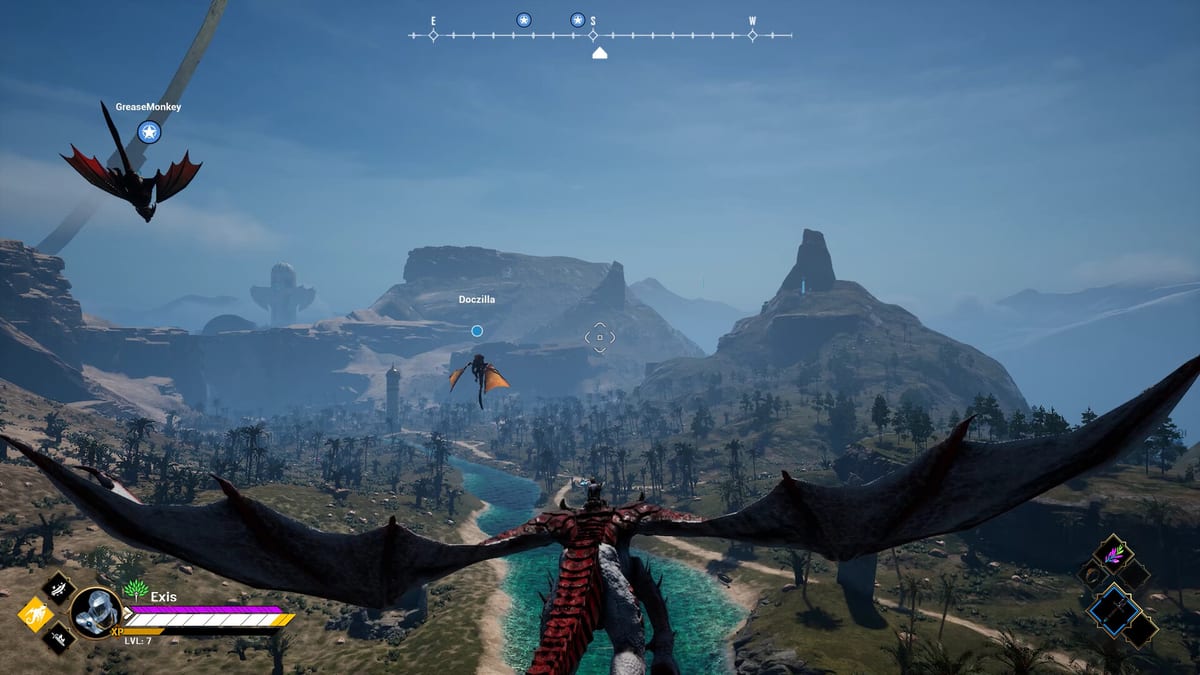
Dragonhold is not always-online. Exis Games provides dedicated server files on Steam so players can host persistent co-op sessions without keeping a full client open as listen host — plus official and community servers you can join freely. This guide walks through hosting concepts, Steam install flow, connectivity checks, and community-reported network defaults. It is written for Early Access PC admins; verify settings against your local config because ports and launch arguments may change between patches.
Pair with Server Port Checklist for printable pre-flight checks and Co-op Guide for in-mission party etiquette once friends connect.
Why run a dedicated server
Benefits over ad-hoc listen hosting:
- Session persistence — Friends join a stable address while admins maintain the process separately.
- Performance headroom — Dedicated machine (or VM) avoids running client graphics plus server simulation on one GPU-heavy rig.
- Schedule-friendly co-op groups — Long-term Boundless Order parties keep the same world between play nights.
Tradeoffs include router configuration, Windows firewall rules, and Early Access instability when server builds lag client hotfixes — watch Updates after patches.
Steam dedicated server files
Steam lists dedicated server tools for Dragonhold alongside the main game app (1510330 on the store). Typical admin flow:
- Install SteamCMD or use Steam’s dedicated server app ID if listed in server documentation.
- Download/update Dragonhold dedicated server files to a dedicated folder (not mixed with personal save clutter).
- Configure server settings via shipped Config files — community WindowsGSM plugins reference
Dragonhold/Configpaths but note console behavior can be experimental in Early Access. - Launch the server binary with logging enabled for first tests (
-logappears in community host templates). - Confirm local listen on expected ports before inviting external friends.
Exact executable names and app IDs should be confirmed from Steam’s Dedicated Server section at install time — Early Access shuffles file layout occasionally.
Community-reported ports (verify locally)
Hosting community docs — including third-party WindowsGSM Dragonhold plugins — commonly cite:
| Port | Protocol | Reported use |
|---|---|---|
| 7777 | UDP | Default game port |
| 27015 | UDP | Default query port |
Important: These values are community-reported, not copied here as guaranteed official constants. Plugin authors explicitly say “No idea if those are correct” and point admins at local config files. Always read your generated config after updates.
Forward both UDP ports on your router to the hosting PC’s LAN IP when friends connect from the internet. Use Server Port Checklist step-by-step.
Firewall and NAT
On Windows hosting:
- Allow inbound UDP for game and query ports in Windows Defender Firewall.
- Disable double-NAT scenarios (modem + router both NATing) or place server PC in DMZ only as last resort — understand security tradeoffs.
- Test external connectivity with friends or third-party UDP port checkers — open locally does not mean open to internet.
LAN and VPN alternatives
When port forwarding fails:
- LAN play — Friends on same network connect via local IP (
192.168.x.x:7777pattern in community guides). - VPN mesh tools — ZeroTier-style networks create virtual LANs; community hosts report success pointing clients at virtual IPs (example pattern
10.x.x.x:7777). See checklist page for high-level steps without endorsing a specific vendor.
Client connection flow
Players join via Steam server browser or direct IP:port depending on Early Access UI — confirm current menu labels after patches. If clients timeout:
- Verify server process running and ports listening.
- Re-check UDP forwards and firewall.
- Confirm client and server build versions match post-patch.
- Retry LAN before WAN to isolate router issues.
Saves and administration
Dedicated worlds generate server-side saves distinct from solo hub islands in many Unreal-style deployments — locate save paths in config after first boot and back up before patches. Admins should document:
- Save directory path.
- Auto-update policy (SteamCMD scheduled updates vs manual patch nights).
- Admin password / whitelist settings if supported in config.
Hardware expectations for hosts
Hosting plus playing on one machine stresses CPU, RAM, and GPU. System Requirements lists player client specs (~GTX 1080 min, RTX 2070 rec, 73 GB storage). Dedicated-only hosts care more about CPU single-thread performance and RAM than GPU — but combined host+player rigs need both.
Steam Deck is not officially supported for client play per developer statements; do not assume Deck can host reliably.
Official vs community servers
Steam store text mentions freely provided official servers alongside self-hosting. Dedicated admin guide focuses on self-hosting; players who do not want router pain can join official/community listings when populated — population fluctuates in Early Access.
Related guides
- How to Host a Server — narrative first-time host walkthrough.
- Co-op Guide — party roles after connect.
- Multiplayer hub — overview linking all online topics.
Self-hosting Dragonhold co-op is absolutely possible in Early Access — success is mostly networking hygiene, version matching, and treating community port numbers as hypotheses you confirm in your own config files.
Frequently Asked Questions
Quick answers tied to this page.
Are dedicated servers free in Dragonhold?
Yes. Exis Games provides dedicated server files on Steam; you supply hardware and bandwidth.
What ports does Dragonhold use?
Community docs commonly report 7777/UDP (game) and 27015/UDP (query). Verify in your local server config — values are community-reported.
Friends cannot connect — first checks?
Run Server Port Checklist: firewall, UDP forwards, matching patch versions, and LAN test.