Dragonhold Server Port Checklist
Verify networking before inviting friends — community-reported ports, firewall, and WAN tests.
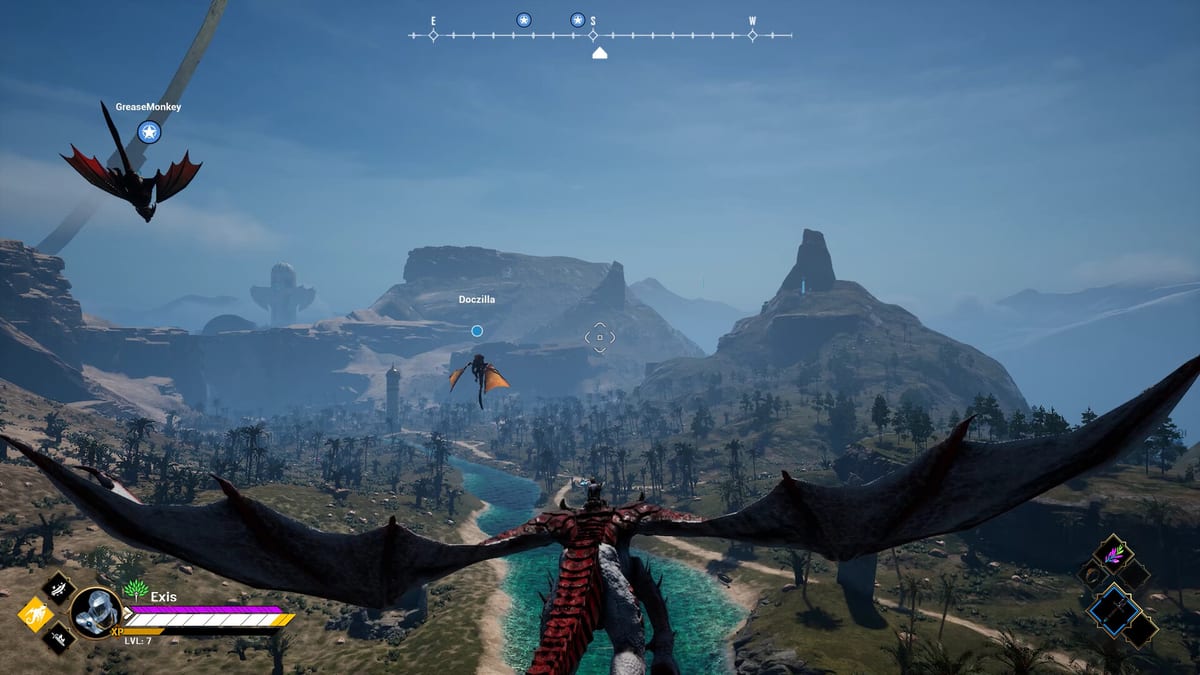
Hosts use this tool-style checklist when friends cannot join a Dragonhold dedicated server or listen session. Exis Games ships dedicated server files on Steam, but Early Access networking still expects admins to configure OS firewall, router forwards, and matching client/server builds. Community hosting docs (including third-party WindowsGSM plugins) commonly report 7777/UDP for game traffic and 27015/UDP for query — treat those as starting guesses verified in your local Dragonhold/Config files, not guaranteed official constants.
Read Dedicated Server for setup narrative; run this list before blaming game code.
Pre-install host checklist
- 64-bit Windows host with enough RAM for server process (plus client if same PC).
- Steam dedicated server files installed/updated to match client patch (Updates).
- Static LAN IP assigned to host PC (DHCP reservation in router).
- Config folder located — verify port values in generated config after first boot.
- Backup plan — Save directory copied before first public invite.
Config verification checklist
- Open server config under reported
Dragonhold/Configpaths from community templates. - Note game port value (community default 7777 UDP).
- Note query port value (community default 27015 UDP).
- Confirm ports not conflicting with other games on same host.
- Document chosen ports in Discord pin for friends.
Windows firewall checklist
- Inbound rule: UDP game port allowed on Private (and Public if needed).
- Inbound rule: UDP query port allowed similarly.
- Server binary explicitly allowed if Windows prompts on first launch.
- Temporarily disable unrelated VPN firewalls that hijack UDP.
Router port forward checklist
- Forward UDP game port → host LAN IP.
- Forward UDP query port → host LAN IP.
- Avoid forwarding TCP unless your verified config requires it — community docs emphasize UDP.
- Disable double-NAT (modem router + mesh router both NATing) or bridge correctly.
- Reboot router after rule changes if connections stale.
Local LAN test checklist
Before WAN invites:
- Server process running; console/log shows listen without immediate crash.
- Friend on same network connects via
LAN_IP:GAME_PORTpattern (example192.168.1.50:7777). - If LAN fails, fix firewall/config before touching router WAN rules.
WAN / internet test checklist
- Host verifies public IP (search “what is my ip”) matches what friends use.
- Friend connects via
PUBLIC_IP:GAME_PORTfrom outside network. - If timeout, UDP port checker tools tested on game port (interpret results cautiously).
- Confirm client game version matches server build after patches.
VPN mesh fallback checklist (optional)
When port forwarding impossible (carrier-grade NAT, dorm networks):
- Create virtual LAN with mesh VPN tool of choice.
- All players install same VPN client and join network.
- Host uses virtual IP in server browser/direct connect (community examples use
10.x.x.x:7777patterns). - Test ping stability before long co-op nights (Co-op Guide).
Player client checklist
- Game updated on Steam.
- Connect via correct IP:port string — no accidental TCP protocol mismatch.
- Retry official/community browser listings if direct IP fails (Multiplayer hub).
- Disable conflicting mods or overlays if crashes on join only.
Post-connect stability checklist
- Voice comm separate from game traffic (Discord etc.) to isolate issues.
- Host monitors CPU/RAM when running client + server same machine — see System Requirements.
- Schedule updates — SteamCMD or manual — during offline windows with save backup.
When to stop port troubleshooting
- LAN works but WAN fails → router/ISP issue, not Dragonhold install.
- WAN works for one friend only → others’ NAT or wrong port string.
- Nobody connects including LAN → server binary/config crash; read logs.
- Everyone lags but connects → host hardware or upload bandwidth, not port rules.
Community vs official disclaimer
Third-party hosting plugins explicitly warn ports may be wrong and point admins at local configs. This checklist repeats that warning deliberately — verify, don’t memorize 7777/27015 as gospel.
Related pages
- Dedicated Server — full hosting guide.
- How to Host a Server — first-time walkthrough.
- Co-op Guide — after friends successfully join.
Clean networking turns Dragonhold co-op into extraction fun instead of router rage. Run this list once per host machine setup, then again after every major Steam patch.
Frequently Asked Questions
Quick answers tied to this page.
What UDP ports does Dragonhold use?
Community docs commonly cite 7777 (game) and 27015 (query). Verify in your server config files — values are community-reported.
Why can friends connect on LAN but not internet?
Usually missing UDP port forwards or double-NAT. Complete the router and WAN sections above.
Do I need TCP ports forwarded?
Community hosting templates emphasize UDP for game and query. Follow your verified local config if it lists additional protocols.